










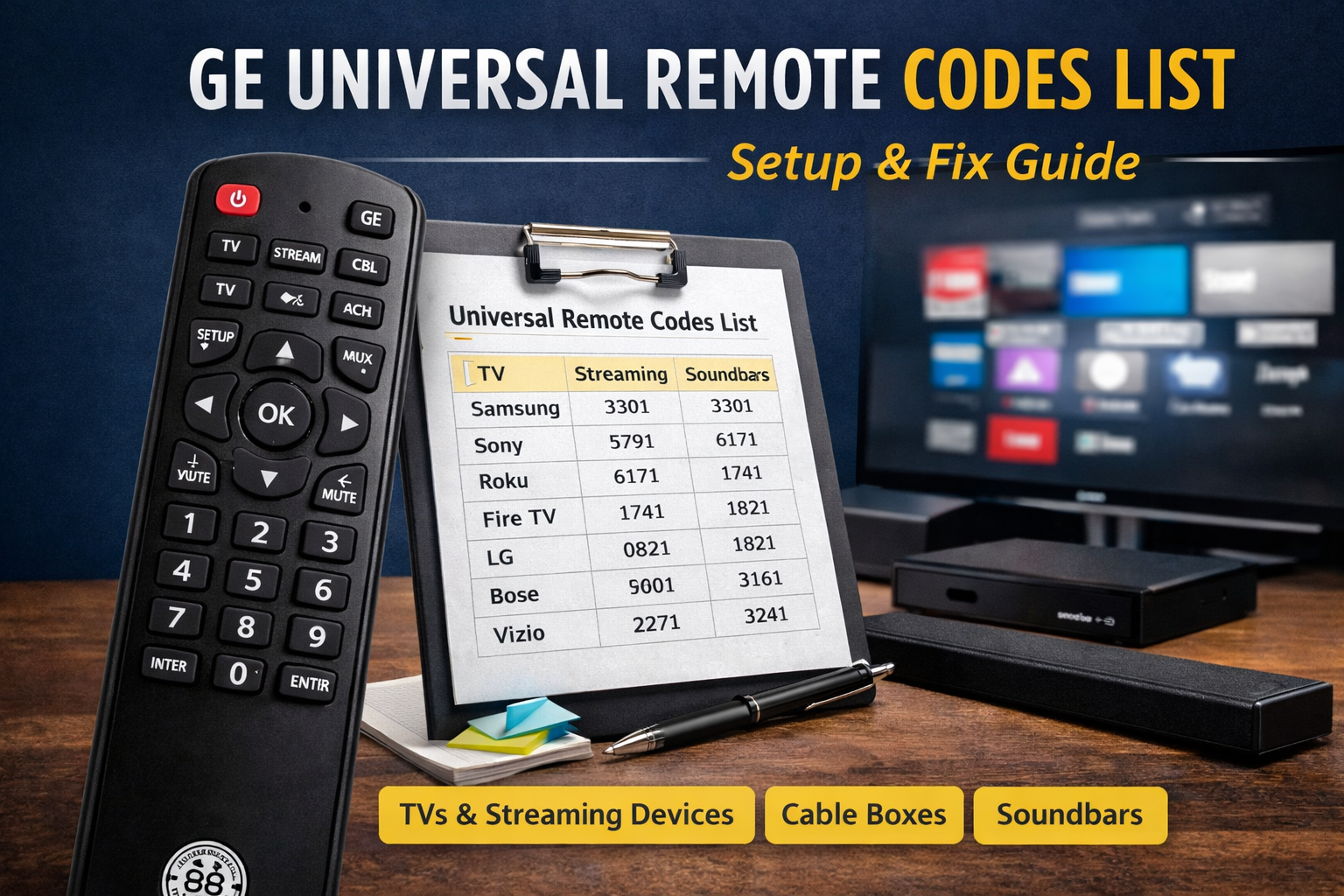
GE Universal Remote Codes List: Find the Right Code Fast and Set Up Any Device
A universal remote can feel like a small miracle until it stops working or you buy a new TV and the buttons suddenly do nothing. Most of the time, the fix is simple: you need the correct code for your device and the right setup method for your remote model. This guide is built to help you understand how a GE universal remote works, where the codes come from, how to enter them correctly, and what to do when none of the codes seem to work. If you’re searching for a ge universal remote codes list, you’ll find everything you need here in one place, explained in a clear, practical way.
What a GE Universal Remote Code Actually Does
A universal remote doesn’t “learn” your TV automatically unless it’s a learning model. Instead, it uses stored code sets. Each code set matches the infrared signals a brand and device type typically uses. When you enter a code, you’re telling the remote which signal library to use when you press Power, Volume, Input, and other keys. That’s why the correct code matters so much: one wrong digit can make the remote partially work or not work at all.
People often expect a single master list that works for every GE remote ever made. In reality, a ge universal remote codes list depends on the code library version inside your remote. That’s also why you may see different codes online for the same brand.
Why You Might See Different Code Lists for the Same Brand
GE universal remotes have been sold across multiple generations. Some older remotes use 3-digit codes, while many newer models use 4-digit codes and may be labeled with different code list versions. Even within 4-digit systems, the stored libraries can differ based on the remote’s release and internal database.
So if you tried a code you found online and it didn’t work, it doesn’t always mean the code is wrong. It can mean the code belongs to a different library than yours. This is one of the biggest reasons people keep searching for a ge universal remote codes list and still don’t get results until they match the code list version properly.
How to Identify Your Remote Model and Code Library
Before you enter codes, take one minute to check two details:
First, look for the model number. It’s commonly printed inside the battery compartment or on the back. Model numbers often look like a short series of digits.
Second, check whether the remote references a specific code list version. Many GE remotes include a small code list label inside the battery compartment. If your remote uses a code list version, it’s important because you’ll get more accurate code matches.
Once you know your model and version, your ge universal remote codes list becomes much easier to narrow down because you can focus only on codes designed for your remote’s database.
The Best Way to Use a GE Universal Remote Codes List
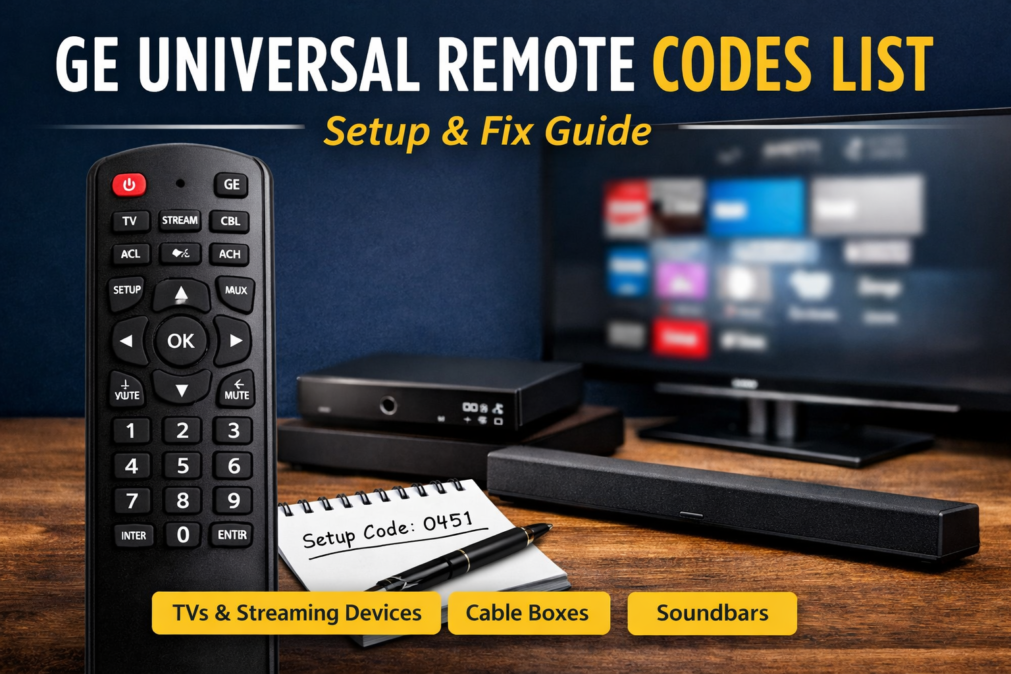
Instead of randomly trying code after code, use a clean process:
Start by confirming your device type. TV, cable box, streaming box, DVD player, soundbar, and audio receivers all use different categories. A code that works for a TV won’t usually work for an audio device, even if they’re the same brand.
Then match your brand name carefully. Some brands have alternate names, sub-brands, or licensing arrangements. For example, a television sold under one label may actually use code sets shared with another manufacturer.
Finally, test core buttons in a sensible order. The best quick test sequence is Power, Volume Up/Down, Mute, Input, Channel Up/Down, and Menu. If Power works but Volume doesn’t, you may need a different code even though you’re “close.” A good ge universal remote codes list normally offers multiple codes per brand for this reason.
How to Program Your GE Remote Using Direct Code Entry
Direct code entry is the simplest approach when you already have a working code.
Most GE remotes follow a pattern like this:
You press and hold the Setup button until the indicator light stays on. Then you press the device button (like TV). After that, you enter the code. The light usually turns off when the code is accepted.
Even when the remote accepts the code, don’t stop there. Immediately test multiple buttons. It’s common for one code to turn the TV on and off but fail on Input or Menu. If that happens, go back to your ge universal remote codes list and try the next recommended code for the same brand.
How to Program Your GE Remote Without a Code
If you don’t have the code list that came with your remote or you’re unsure which code applies, you can still set it up using a search method. This is sometimes called auto code search or code scanning. The remote cycles through stored codes until the device responds.
A typical approach looks like this: enter setup mode, choose the device type, then repeatedly send power signals while pointing the remote at the device. When the device turns off, you confirm to lock in the code.
The search method is slower, but it’s extremely useful when your device brand isn’t obvious or when you’ve tried every code in a ge universal remote codes list and nothing worked. It also helps when a brand has many codes and you’re trying to find the best “full-function” match.
Device Categories to Cover When Searching for Codes
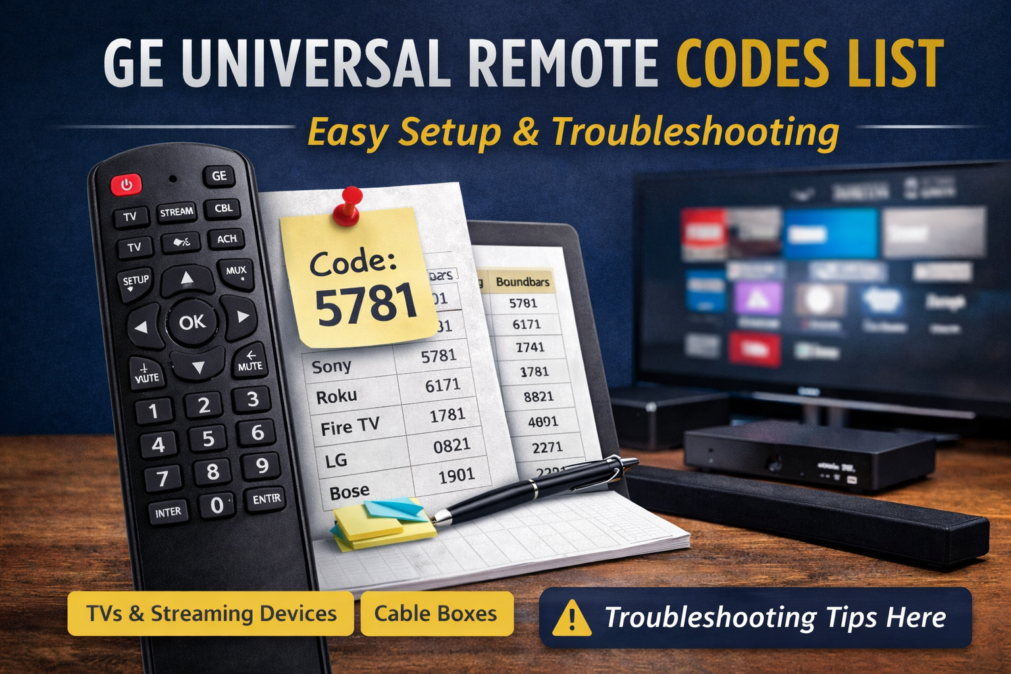
One reason people struggle is they focus only on TV codes. But many homes use a GE remote for multiple devices. If your goal is complete control, you’ll want to locate codes for each category.
TV and Smart TV Codes
TVs usually have the largest number of available codes because there are so many brands and models. When working through a ge universal remote codes list for TVs, look for multiple codes under the same brand and test the Input key carefully. Input is often the first feature to fail if the code is not the best match.
Streaming Devices and Media Players
Streaming sticks and boxes sometimes use Bluetooth, Wi-Fi, or HDMI-CEC instead of standard infrared. If your streaming device doesn’t have an infrared receiver, a traditional universal remote may not control it using codes. In that case, you may still be able to control the TV and volume while using the streaming device’s original remote for navigation.
If your streaming device does support infrared, a ge universal remote codes list may include a separate category for media players or streaming devices, depending on your remote’s database.
Cable, Satellite, and Set-Top Boxes
Set-top boxes are usually infrared-friendly and often easy to program. The main challenge is selecting the correct device category on the remote before entering codes. If the device button is wrong, the code won’t apply correctly even if you typed it perfectly.
DVD, Blu-ray, and Older Players
Disc players remain one of the easiest categories to program because they usually rely on classic infrared commands. Most ge universal remote codes list entries for these devices will include multiple codes per brand, and one usually provides full transport controls such as Play, Pause, and Menu.
Soundbars and Audio Receivers
Audio devices are where many people get stuck. Some soundbars share code sets with TV brands, and some use unique code groups. Also, audio devices may respond to Volume but not to Power, which makes testing confusing. When using a ge universal remote codes list for soundbars, always test Power, Volume, and Input/source switching if the device supports it.
Troubleshooting When Codes Don’t Work
If none of the codes work, don’t assume the remote is broken. Work through these common causes:
First, confirm the remote has fresh batteries. Weak batteries can cause partial signal transmission, which looks like the wrong code.
Second, confirm you’re using the correct device button. Programming a TV code under the DVD button won’t control the TV.
Third, reduce distance and remove obstacles. Universal remotes need a clean line of sight for infrared devices.
Fourth, confirm the device actually uses infrared. Some devices don’t, especially newer streaming hardware.
Fifth, try multiple codes for the same brand. A ge universal remote codes list normally includes several because devices vary by model year and region.
Finally, consider resetting the remote. If you’ve programmed many devices over time, memory settings can get messy. After a reset, try programming one device at a time, testing thoroughly before moving on.
How to Choose the “Best” Code When Several Work
When more than one code works, choose the one that gives you the most complete control. The best match usually has working Power, Volume, Mute, Input, Menu, and navigation keys. If a code turns the TV off but can’t change inputs, you’ll feel that pain every day. It’s worth trying a few options from your ge universal remote codes list to find the most functional code rather than settling for the first one that powers the screen.
Tips for Faster Setup and Fewer Headaches
Write down the code that worked and store it somewhere. If the remote resets after battery changes or you buy a replacement, you’ll be glad you did.
If you’re setting up multiple devices, program the TV first. Once the TV works, it’s easier to confirm whether a soundbar or set-top box is responding because you’ll have control of the screen and volume.
Also, don’t rush during code search mode. If you move too quickly, you might skip past the correct code and waste time cycling through the list again.
Most importantly, be patient with the process. A ge universal remote codes list is not a single magic key. It’s a set of options, and the right setup method is what makes those options useful.
Conclusion
Getting a universal remote working shouldn’t feel like a guessing game. The real secret is matching your remote’s model and code library to the correct device category, then testing codes logically until you find the best full-function match. Whether you use direct code entry or the search method, a ge universal remote codes list becomes far more helpful when you approach it with a clear process. Once you’ve found the right code, save it, test all the important buttons, and you’ll have a remote that feels effortless again.
FAQs
1) Why are there multiple codes for the same TV brand?
Brands often use different signal sets across model years. Trying more than one option from a ge universal remote codes list helps you find the best full-function match.
2) My TV turns on, but the Volume or Input doesn’t work. What should I do?
That usually means the code is close but not perfect. Try the next code for the same brand and retest the buttons.
3) Can I use a GE universal remote for streaming devices?
Sometimes yes, but only if the streaming device supports infrared. If it relies on Bluetooth or Wi-Fi only, codes may not work.
4) What if none of the codes work at all?
Check batteries, confirm the correct device button, verify the device is infrared-compatible, and use the code search method if available.
5) How many times should I try codes before switching to auto search?
If you’ve tried several brand codes carefully and tested multiple buttons, auto search is usually the fastest next step. It scans your remote’s stored database and can find a match even when brand lists fail.
You May Also Read: Vidnoz AI: A Practical Guide to Creating Videos Faster Without a Studio